Showing posts with label Exhaustive property. Show all posts

Tuesday, April 2, 2013

SSIS : Fuzzy Grouping Transformation

Fuzzy Grouping Transformation

Use of fuzzy grouping
I wanted to learn, how to use Fuzzy grouping transformation. But I was not getting any scenario, where this transformation could be used. Then while going through Google search, I got some scenario in which this transformation can be used. The scenarios are as follows:
·         Scenario1: Say there are various clothes shops in a market. Some sales man sells cloths in shops. One wants to get the salesman, who has sold maximum clothes. For this the records of sale for each salesman in shop1 and shop2 is as follows:
Shop1:                                                                  shop2:               

        But there are some names, which misspelled .For getting the total sale of each salesman, we will need to use fuzzy grouping, which will group the names which are similar and will assign a common name to the similar names, so after that we can aggregate the sales of each salesman by that common name.
For example; jayant and jayanath are similar, in which one of name misspelled. So the total sale of jayant (jayanth ) is 107.
·         Another scenario can be, when country name is misspelled or if company names misspelled etc.
Implementation of Fuzzy Grouping Transformation
Here I am going to implement the first scenario1, in which we will be doing fuzzy grouping of shop1 and shop2 by Name, and will calculate the total sales made by each salesman. So the result should look like
For implementation, I have followed below steps:
Step1: Add a DFT in your package
Step 2: For source, I have used one excel connection for shop2, and one Oledb connection for Shop1.
I did this, so that we can make this scenario a bit difficult, and we could learn some more.
Before using OleDB connection, let’s create the table and insert the data in SSMS, as below

For using Excel connection insert data of shop2 into one excel sheet of an excelfile

Now we will add Oledb source and Excel source in the DFT, and will configure both


Step3:  Union all records of both the shops
As we want to union the records of both the shops, so that we can apply fuzzy grouping on all the records of both shops.
For this, we need to use ‘Union All’ Transformation. But for doing Union, both the source should have same data type for their columns. For making the data type of the mapping columns similar, I am using Derived Column Transformation for both the source.
Now we will be typecasting column Sales of both the shops into one data type(in Derived column transformation) for this double click on derived column transformation, and then add one derived column say ‘sales1’ and set expression , as shown below:
Where (DT_R8)sales means, we are type casting sales column of each to DT_R8 data type, which is nothing but double precision float data type. This is one for both source’s column sales.
Now, we can apply on both the shops, Union All editor looks like below:

Step 4: Add Fuzzy grouping transformation and double click on it and go ‘Coulmn’ tab
                               
In the columns tab,
check the checkbox on left of the column, for applying fuzzy matching on that column, here  I have check the checkbox of name, that means the fuzzy matching will be applied on name column, as you can see match type as ‘Fuzzy’. 
Check the checkbox on right of the column (ie; Pass through), for using those columns in your result. As here I have checked column sales, because in the result we want to get total sale of each sales man , so this column will also be used.
In the Advanced tab
We can set the similarity threshold, token delimiters, etc.
·         Similarity threshold as 0.80: that means only matches which are at least 80% similar to the searched will only be displayed.
·         Token Delimiter: This is default set, as shown below. The delimiters below will break each sentence into multiple words if they found the delimiters, and then the matching will be done.
·         _key_in, a column that uniquely identifies each row.
·         _key_out, a column that identifies a group of duplicate rows. The _key_out column has the value of the _key_in column in the canonical data row. Rows with the same value in _key_out are part of the same group. The _key_outvalue for a group corresponds to the value of _key_in in the canonical data row.
·         _score, a value between 0 and 1 that indicates the similarity of the input row to the canonical row.


Step 5: Add Aggregate transformation, Excel Destination
Aggregate transformation is used for getting the aggregate sum of sale per person.
Before that add a ‘Data Viewer’ on the connector of Fuzzy grouping and Aggregate transformation. So that we can see some result from fuzzy grouping.
Configure the Aggregate transformation
Apply operation sum on Sales column, and Group by on Name_Clean. That means, sales will be sum by Name _Clean. Where Name_Clean is the column generated by fuzzy transformation, along with name, s ales etc., which contains value of name which are part of the same group. Rows with the same value in _key_out are part of the same group.
Step 6: Execute DFT.
After Fuzzy grouping, one Data viewer is used, which gets popup while execution. Here in the Data view we can see that, Name_Clean is Jayanth for both ‘jayant’ and ‘jayanth’. Similarly Name_Clean is ‘sidhart’ for both ‘sidharth’ and ‘sidhart’.

When we continue execution, then one more data viewer is in the connector between Aggregate transformation, and Excel Destination. That data view gets pop up
That shows the result after aggregate, as Sidhart has total 107 sales, and jayanth has 154 sales
This is how the whole task executes, and stores the result in Excel destination


Please provide your feedback for the post, if you find this post useful. Also Post your query or scenario, i will be happy to help.

Monday, April 1, 2013

SSIS : Fuzzy Lookup Transformation

Fuzzy Lookup Transformation

There was a scenario; when my friend asked me to get the email id of the people, whose emailAdrress is similar to some words, or whose email address contains words like ‘optimist’, because he wanted to give some surprise gift to those people.
When I was thinking of the solution, then I thought of to use Lookup transformation for this, but it was of no use, as it only looks for the exact matches. As I have to get the similar matches, lookup will not work. Then I thought of to use Fuzzy Lookup transformation, which displays similar results also, and that too with the matching percentage. By using this transformation, we can get several similar matches, and we can pick the one with the highest or the matches which are at least 80% similar.
For the above scenario, I followed the below steps, to make it work.
Step1: Add a DFT in your package


Step 2: Add an OleDB connection in the connection manager 


Step3:
Double click on Data flow task or go to Data flow task tab, and add
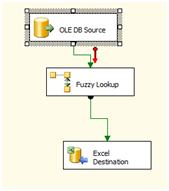
One OleDb Source, one Fuzzy lookup transformation and one Excel Destination
Connect all of the above as shown below-

Step4: Configure OleDB source,
 But before Configuring OleDB source, create a table in Adventure works Database in SSMS (SQL Server Management System 2008), as shown below and insert some records as shown below.
Then configure the oledb source with the table created above as below:

The Records in the fuzzylookup table in OleDb source, are the values which will be looked or searched in the appropriate column of the reference table. In this scenario, this table contains the 3 email address, so the above email address whether those exactly matches or similar matches, will be searched in the reference table.

Step 5: Configure Fuzzy Lookup transformation
For configuring the reference table, which is “[Person]. [Email Address]” in which the above email address will be searched (either similar or exact matches), we need to configure Fuzzy Look Transformation.
For Configuring the Fuzzy Lookup Transformation, Double click on the transformation.
Configure the Reference table tab, with the reference table, which is “[Person]. [Email Address]” for our scenario.
Go to Columns tab,
Map the email column of the Available input columns (which is the column of the oledb source table dbo.fuzzylookup) to the ‘EmailAddress’ column of the Available lookup columns (which is the column of the reference table “EmailAddress”).
Select  the columns , which you want to display with the found email Address, as here , I have selected ‘email’ column and ‘EmailAddress’ column, because I want to display the email, which are searched and the emailaddress which are found as the exact or similar match of the email.

Go to Advanced tab,
Set the Maximumnumber of matched to output per lookup as 10:  that means that even though more than 10 similar matches of an email are found, but in the result, it will display only 10 similar matches per email.
Set the Similarity threshold as 0.80: that means only matches which are at least 80% similar to the searched email, will only be displayed.
Token Delimiter: This is default set, as shown below. The delimiters below will break each sentence into multiple words if they found the delimiters, and then the matching will be done.

Step 6: Configure the Excel Destination,
Before configuring, create one excel file and give the columns the below column name
Do the mapping of the available input columns to the Available Destination columns of the excel destination.

Step 7: Execute the DFT.

But when you execute the DFT, and you lookinto the excel file, you don’t get the accurate result, this is because Exhaustive property (in ADVANCED Editor) is set to False by default. Set Exhaustive property to True for getting more accurate result and for comparison of all the rows.
For setting this property, Right click on Fuzzy lookup Transformation , and select ‘Show Advanced Editor’,
‘Advanced editor ‘will be displayed as below, then go the Component Properties tab and Set Exhaustive property to True.  

Again execute the DFT. Now you will get the accurate results.

Each match includes a similarity score and a confidence score.
·         The similarity score is a mathematical measure of the textural similarity between the input record and the record that Fuzzy Lookup transformation returns from the reference table. We can think of it as the similarity point out of 1.
If you want to know , how it is calculated, then Let me try to explain, how it is measure, as per the delimiters set in fuzzy lookup transformation, email address is broken into many words,
By considering @,-,.  Are the delimiters, then, James9@adventure-works.com , is broken into 4 words, which are james9, adventure, works, com. So when ‘james’ is compared with each word, it is found in ‘james9’ , but james is not 100% similar to ‘james9’ ,so the similarity index can’t be 1. Then what it will be, it will be number of matching characters in the word/ total number of words (in james9), so it will be 5/6, which is equal to 0.833  
·         The confidence score is a measure of how likely it is that a particular value is the best match among the matches found in the reference table. The confidence score assigned to a record depends on the other matching records that are returned.

For example, matching St. and Saint returns a low similarity score regardless of other matches. If Saint is the only match returned, the confidence score is high. If both Saint and St. appear in the reference table, the confidence in St. is high and the confidence in Saint is low. However, high similarity may not mean high confidence. For example, if you are looking up the value Chapter 4, the returned results Chapter 1, Chapter 2, and Chapter 3 have a high similarity score but a low confidence score because it is unclear which of the results is the best match.
Point to remember:
·         If the Exhaustive property (in ADVANCED Editor) is set to False, the Fuzzy Lookup transformation returns only matches that have at least one indexed token or substring in common.
Set Exhaustive property to True for getting more accurate result and for comparison of all the rows. If you set the Exhaustive property to True, the transformation compares every row in the input to every row in the reference table. This comparison algorithm may produce more accurate results, but it is likely to make the transformation perform more slowly unless the number of rows is the reference table is small.
·         Only input columns with the DT_WSTR and DT_STR data types can be used in fuzzy matching.

Please provide your feedback for the post, if you find this post useful. Also Post your query or scenario, i will be happy to help.